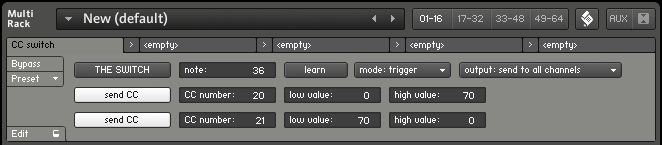
I wrote this little Kontakt multiscript to automate sustain pedal from midi keyboard. I tend to loose sustain pedal in my floor level room chaos, as I keep it unplugged and I don't quite use it too often. I thought it would sometimes be handy to have a midi key acting as a CC switch, if only for testing purposes.
So, this script can be used to make a key act as sustain pedal, which is default setting, or to automate any other CC controller. You can assign two values to a CC and then switch between them, using midi keyboard or virtual button. Also you can set automation for secondary CC, so you could automate two different settings with the switch.
In example on screenshot, pressing MIDI key 36, will set CC20 to 0 and CC21 to 70. Releasing the key will set CC20 to 70 and CC21 to 0.
You can download the script preset here. It needs to be copied to multiscript preset folder (in my Windows it's "my
documents\Native Instruments\Kontakt 4\presets\multiscripts"). This is
multiscript, so you load it on top of instruments (use the scroll button). It has been
written in Kontakt 4.2.4.
Friday, June 5, 2015
Thursday, June 4, 2015
Sonocipher
Sonocipher, is one completely unnecessary tool, which can convert a text string to machine drum sequence. The practical uses of this device are severely limited, as there is no backward conversion tool. However, it makes noises and it has blinking lights, so it's quite fun for those, who enjoy such activities.
Audio output example:
http://www.fairlyconfusing.net/audio/electronic_dane_music_of_tomorrow.mp3
The machine is quite simple to use, you use virtual keyboard to type in text, then press "enter" to decode it into sound sequence. "Play" button in upper right corner starts sequence playback. And here's how it works:
Sonocipher is virtual machine for Native Instruments Kontakt sampler. It requires full version of Kontakt 4.24 or newer. It is free to download and use for private or public amusement. You can get it HERE - 12MB, zip archive, includes sample set and Kontakt program.
This machine is rather simple, so there is no manual. Here are some tips and hidden functions:
Graphic interface is based on stock agency photo.
There is a "melody machine" variant of this device, read here.
Audio output example:
http://www.fairlyconfusing.net/audio/electronic_dane_music_of_tomorrow.mp3
The machine is quite simple to use, you use virtual keyboard to type in text, then press "enter" to decode it into sound sequence. "Play" button in upper right corner starts sequence playback. And here's how it works:
Sonocipher is virtual machine for Native Instruments Kontakt sampler. It requires full version of Kontakt 4.24 or newer. It is free to download and use for private or public amusement. You can get it HERE - 12MB, zip archive, includes sample set and Kontakt program.
This machine is rather simple, so there is no manual. Here are some tips and hidden functions:
- press 'enter' when input line is empty to recall last entered text,
- hold 'control' key while clicking the backspace button to erase whole line,
- 'wave' button next to 'start' button activates modulation sequencers, which will animate audio effect and distribute signal to spatial processors,
- 'hash' button triggers spatial effect auto configuration function,
- click 'asterisk' button to generate random text sequence, then press 'enter' to decode it,
- big blank key in bottom left corner, shifts between spatial modes, which will change signal distribution to spatial processors,
- little blank key activates 'glitch playback' mode,
- hold shift and click comma button to enter apostrophe character,
- hold shift and click question mark button to enter exclamation mark character,
- use modwheel to change sequence properties,
- this instrument doesn't read computer keyboard, you need to click through virtual buttons,
- the instrument only uses capital letters,
- some functions (like clock restart or modulators reset) are only available from midi keyboard keys,
- similar text string will generate similar sound sequences,
- very short strings will generate very simple sequences, make your text 10 characters to make the machine use all layers, the input text limit is 50 characters.
Graphic interface is based on stock agency photo.
There is a "melody machine" variant of this device, read here.
Saturday, May 2, 2015
Wineglass drone, GUI update and change of location
I have made new Kontakt interface for Wineglass Drone instrument. It has been one of my first takes at Kontakt scripting and I felt, this set deserved a new approach. New GUI is based on two voice design, which can be used to create interesting setups, like detuning the reverberation, or band split two reverb types.
This instrument, as well as all my other paid instruments are now located at Loot Audio.
If you've already acquired this set and you would like to use new interface, you can get it here (this is just the new Kontakt patch, it is using the same sample set). Just put new patch files in instrument's folder. The new patch is made in Kontakt 4.24, so it requires this or newer, full version of Kontakt.
This instrument, as well as all my other paid instruments are now located at Loot Audio.
If you've already acquired this set and you would like to use new interface, you can get it here (this is just the new Kontakt patch, it is using the same sample set). Just put new patch files in instrument's folder. The new patch is made in Kontakt 4.24, so it requires this or newer, full version of Kontakt.
Tuesday, April 28, 2015
ZX Transmissions
ZX Spectrum was the first computer I had. It used to store data as analog audio, that would be recorded to tape, which could sound interesting at times. Recently I've been discussing possibility of using such data audio files in noise/glitch music. In the end, I created an audio data transmission, that could be used for such purposes. It sounds like this:
http://www.fairlyconfusing.net/docs/zx-transmission.mp3
It is free to grab and use in your music, right here, 48kHz, 16 bit, mono WAV file. Take it, if you like.
If you'd like to make such noises yourself, it's really quite simple. Here's the procedure I used. First I created some data, I used Photoshop to make a picture, I made it 256x192 pixels, which is ZX Spectrum native resolution, filled it with geometrical figures in different shades of gray. Converting the picture to bitmap made gray areas fill with repeating patterns (which make more interesting sounds than just random noise). Then I saved the picture to BMP format, but anything without compression would do. Actually you can use any data file, just (for this example) make it no longer than 6KB (bigger files will crash emulated computer when loaded, where I intend to load it).
I have a Spectrum in a dusty box, but it is way easier to use an emulator. I chose ZX Spin, as it lets you load any data file right into emulated memory and it saves WAV files out of the box. The home page seems to be down, but you can find the program here. Spectrum ROM have been allowed for free distribution, so you can use an emulator, even if you don't own the actual machine.
I decided to use video memory region, so I could see how picture loading works. First I wrote a command to save the region. To skip the trouble of learning how, you can use Z80 snapshot included in the download, just load the file into the emulator. You should see a message, "Start tape, then press any key". Now load the data, using menu "file/load binary file". Pick saved picture file and enter 16384 as the address. Now the screen should be filled with scrambled picture from input file. Pick menu "recording/audio/start recording", enter file name to save to and press any key to start the transmission. You should see moving stripes and hear transmission noises. When done pick "stop recording". This will create fun, modem like noise transmission. Try to pitch it down for some extra flavor. Have fun.
http://www.fairlyconfusing.net/docs/zx-transmission.mp3
It is free to grab and use in your music, right here, 48kHz, 16 bit, mono WAV file. Take it, if you like.
If you'd like to make such noises yourself, it's really quite simple. Here's the procedure I used. First I created some data, I used Photoshop to make a picture, I made it 256x192 pixels, which is ZX Spectrum native resolution, filled it with geometrical figures in different shades of gray. Converting the picture to bitmap made gray areas fill with repeating patterns (which make more interesting sounds than just random noise). Then I saved the picture to BMP format, but anything without compression would do. Actually you can use any data file, just (for this example) make it no longer than 6KB (bigger files will crash emulated computer when loaded, where I intend to load it).
I have a Spectrum in a dusty box, but it is way easier to use an emulator. I chose ZX Spin, as it lets you load any data file right into emulated memory and it saves WAV files out of the box. The home page seems to be down, but you can find the program here. Spectrum ROM have been allowed for free distribution, so you can use an emulator, even if you don't own the actual machine.
I decided to use video memory region, so I could see how picture loading works. First I wrote a command to save the region. To skip the trouble of learning how, you can use Z80 snapshot included in the download, just load the file into the emulator. You should see a message, "Start tape, then press any key". Now load the data, using menu "file/load binary file". Pick saved picture file and enter 16384 as the address. Now the screen should be filled with scrambled picture from input file. Pick menu "recording/audio/start recording", enter file name to save to and press any key to start the transmission. You should see moving stripes and hear transmission noises. When done pick "stop recording". This will create fun, modem like noise transmission. Try to pitch it down for some extra flavor. Have fun.
Wednesday, April 8, 2015
Game Bot
Bedroom Producers Blog released super-fun Game Boy drum kit today. I had the pleasure to make Kontakt gadget drum machine based on this kit, it is named Game Bot. The device is using Cracklebot / Haunted Jukebox code, with some new twists and improvements. It is running 10 sets of step sequencers to animate notes and effect settings, sequencer program is generated automatically on user's request. Unlike previous machines Game Bot accepts incoming notes to simply play the drum kit, in which case program and controls can be used to create different kit setups and/or to animate effects using modulation sequencers.
You can see the machine is action here:
Game Boy drum kit (including Game Bot machine) is available for free at Bedroom Producers Blog:
http://bedroomproducersblog.com/2015/04/08/game-boy-drum-kit/
You can see the machine is action here:
Game Boy drum kit (including Game Bot machine) is available for free at Bedroom Producers Blog:
http://bedroomproducersblog.com/2015/04/08/game-boy-drum-kit/
Sunday, March 29, 2015
Electric Noisebow
Electric Noisebow is imaginary virtual instrument for Kontakt sampler. It can generate drone sounds, noise soundscapes, ambient atmospheres or unfolding distortions. It is based on two sample sets I made by playing modified Reno electric guitar with an E-Bow. The clean set is built of sustained tone samples. The dirty set contains distorted sounds, I've got by putting the E-Bow very close to the vibrating string, so the string would start to collide with E-Bow housing. I edited all samples by hand to get more or less seamless loops, which are rather lengthy. Especially noise loops which span for 20-30 seconds. The instrument has double convolution reverb unit, which can be used to sweep between reverb and sound types. There is note doubler and round robin mechanism synchronized with transport position, so used in a project, the instrument should render repeatable results.Here's example track created with one instance of the instrument in a single take:
http://www.fairlyconfusing.net/audio/electric_noisebow.mp3
And here's a small walk-through video:
The instrument is available at Loot Audio. Note, that it requires full version of Native Instruments Kontakt 4.2 or newer to work. There are 36 WAV samples, 88,2 kHz, 24 bit and the whole instrument takes about 220MB or drive space.
Labels:
electro-acoustic,
kontakt,
noise,
soundscape,
tonal,
wav
Monday, March 23, 2015
Note looper/recorder/player multiscript for Kontakt
This is probably pointless exercise, because it is what people use sequencers for, but I made an attempt at writing a script which would record and playback incoming note sequences in Kontakt. I was aiming at something that would allow me to record sequences while playing and then switch through them from keyboard. I took it to a point where I'm able to jam with it, e.g. trigger different drum loops and bass loops while playing another instrument. Feel free to try it out.DOWNLOAD HERE
DOWNLOAD revision C
These are script preset files, they need to be uncompressed to multiscript preset folder (in my Windows it's "my documents\Native Instruments\Kontakt 4\presets\multiscripts"). This is multiscript, so you load it on top of some instruments. It has been written in Kontakt 4.2.4.
Update: revision C scripts should fix incompatibility with midi controllers, which use zero velocity note on command instead of note off command. Also midi learn function, may be a bit more bulletproof in this version and key cluster tape change automation functionality is fixed for reel 2. Rev C pack contains x2 and x4 versions.
It is an experiment and it is possible, it may have some bugs, so be cautious with it. I don't have the drive for bulletproof testing of this script, so take it as it is, maybe you will find it useful, but have in mind that it may go south at some point.
Note, if you re-save the preset, all recorded sequences will be saved within the preset, so you can easily make sequence sets.
A little guide to the script.
The script will memorize incoming note on and note off messages (no other MIDI data is processed) and then play back the sequence on request.
There are two versions of the script "x1" is a kind of one track recorder and "x2" has two tracks, so you can playback two sequences simultaneously.
Press record to start recording, which actually starts on first incoming note (the gap before pressing record button and receiving first note is ignored). When done press record again to stop the recording, or press play to stop recording and start playback right away. If loop switch is on, recorded sequence will play in a loop, else it will stop after last note. If auto rewind switch is on, the recorded sequence will start from beginning, when you press play button, else it will start from where it stopped.
There are 8 "tapes" per reel, so you can record up to 8 sequences which you can switch through while playing. If play button is on, tape will not change immediately, but it will be scheduled. After coming to the end of currently playing sequence, the machine will load selected sequence. This way you can switch loops "in advance". Each tape can store up to 2040 events, so a bit more than 1000 notes. If the limit is reached, the recording should stop automatically.
Play, record and tape change commands can be automated with midi keyboard. Note, that key used for automation will be unavailable for triggering notes. Tape change command has three automation modes, you can use CC message, a series of 8 keys, where pressing a key will load corresponding tape, or use one key to toggle through tapes. In last mode there is option named "select empty", when the switch is off, the machine will only toggle through recorded sequences, skipping empty tapes (as selecting empty tape will stop playback).
Snap is function, which will try to align recorded sequences to current tempo. When it's activated, the machine will wait for sync when starting to play the sequence, on play button or when restarting a loop. There is no synchronization in between, so this machine is not suitable to playback whole songs, better stick to 1-6 measure loops. So, e.g., if you pick snap resolution to whole note in 4/4 meter, have snap switches enabled and press play, the sequence will start at beginning of next measure.
Synchronize is function which will attempt to recalculate recorded times to fit a recording to different tempo. This is somewhat tricky, as the machine memorize events like this: note on, wait some thousands milliseconds, note off, etc. At the moment of recording, the quarter note length is stored, which is then being compared to current quarter note length and used to recalculate waiting times throughout the recording. Tempo changes while recording are not stored.
Key setting is simple transpose function, it will add key value to note numbers on playback.
Input port and channel settings can be used to pick a source of data, in case you have multiple controllers. "x2" version of the script has simple data router, so you can switch instruments while playing/recording. Changing channel/port can be automated with a key or CC.
There are somewhat limited "sequencing" options in Kontakt multiscript, so I made this script using "wait" command together with, $KSP_TIMER and $DISTANCE_BAR_START variables (first to detect event times, second to sync with tempo). The second variable is only being updated in Kontakt when transport is running, so synchronization will fail, if the play button is off in host. In standalone mode, it will always work, as Kontakt assumes transport is always on.
Feel free to write me, if you find it usable, yet limited or bugged in some aspect. I may look into it again.
Subscribe to:
Posts (Atom)